# Energy Management System Toolkit - Enapter Gateway 3.0
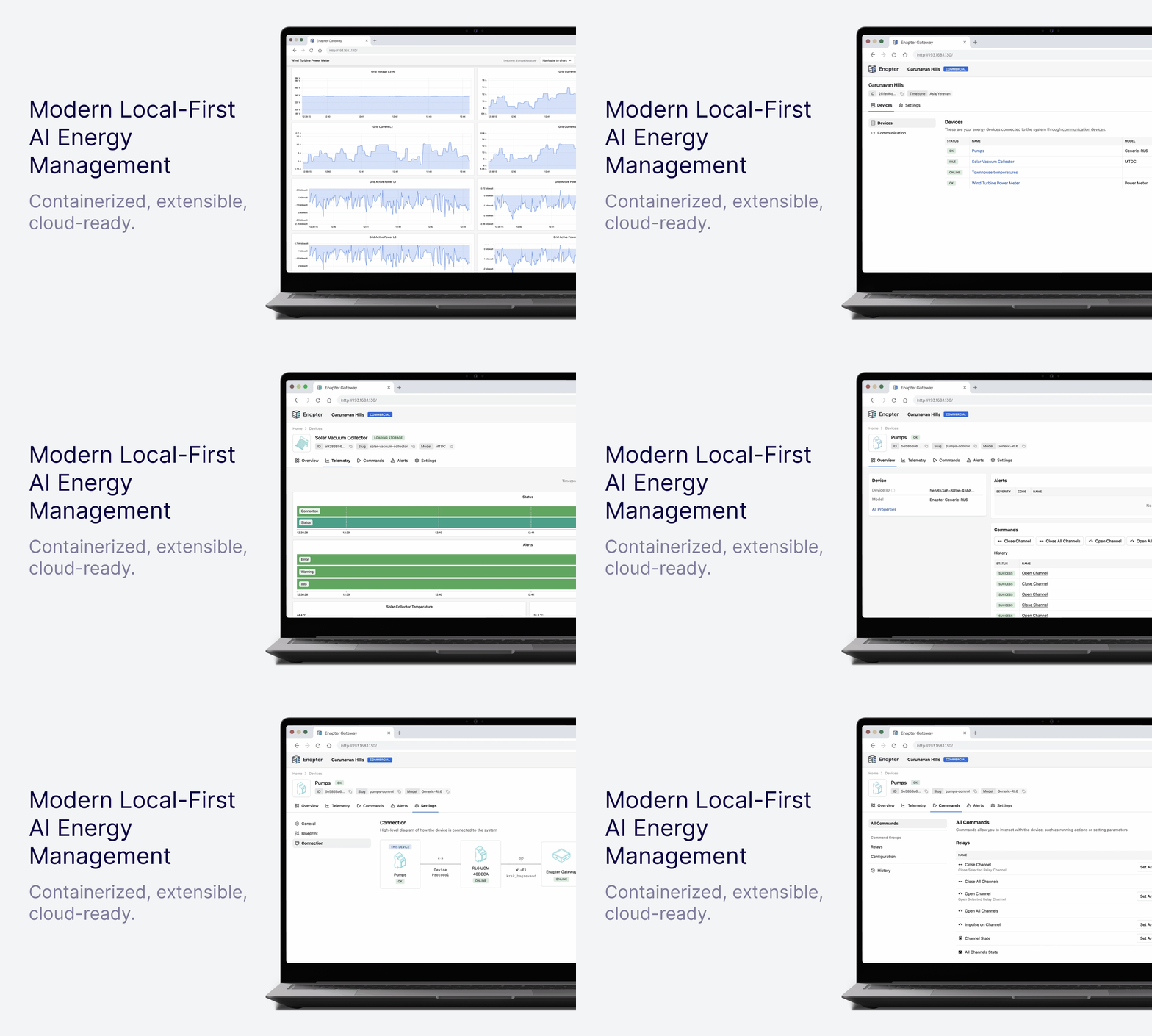
# What's New
- 🚀 Local-first reliability: Offline-first architecture with optional cloud sync.
- 🧩 Software-defined devices: Runtimes host multiple Lua Blueprints for flexible device definitions.
- ⚙️ Developer tooling: Enapter IDE, Enapter CLI 3.0, and Developers API v3 for scalable workflows.
# Quick Highlights
- Runtime-based model: One runtime can host many logical Lua devices (Virtual UCM & UCM M2).
- Automation: Built-in Rule Engine with Lua scripting for advanced automation.
- Containers & Integrations: Podman (Docker), HTTP API, Enapter LINK, and optional OPC UA server.
- Efficient storage: Aggregated, compressed telemetry for scalable long-term storage.
# Features & Capabilities
Gateway Software 3.0 runs on Enapter Industrial Linux - a secure, industrial-grade OS - and is designed for modern energy systems that require reliability, extensibility, and developer-friendly tooling. Key capabilities below are presented as concise, scannable highlights for operators and developers.
- Architecture: Local-first design with optional Enapter Cloud connectivity for remote monitoring and sync.
- Runtime & Blueprints: Runtimes execute Lua Blueprints to provide device telemetry, commands, and lifecycle management.
- Automation & Rules: Lua-based Rule Engine enables complex automation scenarios close to the hardware.
- Data Handling: Aggregated and compressed telemetry storage with hierarchical data model support.
- APIs & Protocols: HTTP API, Enapter LINK, and optional OPC UA for industrial integrations.
- Containers: Podman support for containerized apps and services on the gateway.
- Developer Experience: Enapter IDE extension for VS Code, comprehensive CLI (Enapter CLI 3.0), and Developers API v3.
- Deployment Flexibility: Virtual UCMs and UCM M2 support multiple logical devices; first-gen UCMs remain compatible for single-device use.
# Migration from Gateway Software 2.5 to 3.0
No migration of historical data, configurations, or sites from Gateway Software 2.5 to 3.0.
Each Gateway Software 3.0 installation always starts as a clean Gateway and a clean Site. Existing systems must be reconfigured manually using the new tools and workflows provided in EMS Toolkit 3.0.
WARNING
When booting Gateway 3.x firmware on hardware previously running Gateway 2.x, the setup process may offer to reuse the existing data disk.
If the data disk is reused, all existing data from Gateway 2.x will be permanently deleted.
Gateway 3.x does not migrate any data, configurations, or sites from earlier versions.
# How to Start from Scratch
- Check Required Hardware Equipment (opens new window)
- Download the Gateway Software 3.0 (opens new window)
- Create Bootable USB Flash (opens new window)
- Manage Cable Connections (opens new window)
- Disable Secure Boot in Gateway BIOS. Enapter OS will boot from the USB flash. To enable it, Secure Boot must be turned off in BIOS.
- Connect Gateway Software 3.0 to Enapter Cloud 3.0
- Connect Gateway Software 3.0 to Enapter Mobile App
# Connecting Gateway Software 3.0 to Enapter Cloud 3.0
Gateway Software 3.0 can securely connect to Enapter Cloud 3.0 to synchronize devices, telemetry, rules, properties, and configurations. With Enapter Cloud connection it also provide push notifications feature to stay aware of any misbehaviour whenever you are. Offline buffering ensures reliable data delivery during internet outages. Users can manage devices locally, via the cloud or App for unified monitoring and control.
To access your device remotely using Enapter Cloud 3.0:
- Access
Settingsof your Gateway Software 3.0. Enableconnection to Enapter Cloud.- Enter
Enapter Cloud LoginandEnapter Cloud Passwordof your Enapter Cloud 3.0. - Press the
Set Up Connectionbutton.
# Mobile App Connection

The Enapter Mobile App allows direct access to device dashboards, logs, and commands.
To connect Gateway Software 3.0 to Enapter Mobile App:
- Navigate to
Accountsin the app and press+ Add Connectionbutton under theGatewayssection.

- Enter the gateway’s IP address, along with the superuser login and password you created during setup.

# New Concept of Communication and Energy Devices
Gateway Software 3.0 introduces a new way of thinking about devices in energy systems.
Instead of treating each device as a fixed, standalone unit, version 3.0 is built around the concept of runtimes - intelligent devices that can host and run other devices.
# Devices Are No Longer Just Hardware
| Gateway Software 2.x | Gateway Software 3.0 | |
|---|---|---|
| Blueprint deployment | Blueprint v1 is installed directly onto a UCM | Blueprint v3 is used to create one or more logical (Lua) devices |
| Role of UCM | UCM itself is the final device | UCM acts as a runtime for software defined devices |
| Device model | One Blueprint → one physical device | One runtime → multiple logical devices |
| Scalability | Limited by one device per UCM | Higher scalability via multiple devices per runtime |
| Supported multi-device hosting | Not supported | Supported on Virtual UCM and UCM M2 |
# Runtimes in Gateway Software 3.0
A runtime is a software layer that executes your Blueprints for devices (opens new window).
Runtimes provide:
- Connectivity
- Execution of logic
- Telemetry and commands
- Lifecycle management
UCMs, UCMs M2 and Virtual UCMs with software version 3.0 act as runtimes, creating a unified and consistent system architecture.
WARNING
First-generation Enapter UCMs support only single-device implementation using Blueprints with v1 or v2 API.
In contrast, UCM M2 and Virtual UCMs running on Enapter Gateway 3.0 support single-device implementation using Blueprints v1 API and multiple-device implementation with v2 API, making the solution more cost-effective and reliable.
# Software-Defined Devices
Devices implementations are defined with code. Such approach makes it easy to add new features, interchange device vendors or fix bugs.
The software architecture is unified between Virtual and Hardware UCMs.
| Layer | Name | Description |
|---|---|---|
| 5 | Blueprint | Software code package (Lua and YAML) that defines a device properties, functions, profile and logic |
| 4 | Lua Device | A software-defined environment for execution of Enapter Blueprint |
| 3 | Runtime | An execution environment capable of running Lua devices. It handles script execution, connectivity to physical interfaces or protocols. |
| 2 | Operation System | The fundamental system software responsible for device provisioning, management, data aggregation, storage, and API access. |
| 1 | Hardware | The physical platform running the system, such as the Gateway PC or UCM. It provides CPU, memory, and network interfaces. |
This layered model shows how software-defined Lua devices are decoupled from physical hardware. A single runtime (such as a Virtual UCM or UCM M2) can host multiple independent Lua devices implemented with Blueprints v3 API, each behaving as a full EMS device with its own telemetry, commands, and automation logic.
# Examples
# Direct Runtime Connection

A Lua Device (Switch) communicates using its native device protocol with a UCM M2 (ENP-RL6 M2 (opens new window)), which acts as its runtime.
The runtime connects directly to the Enapter Gateway 3.0 over Wi-Fi, where the device is managed, monitored, and automated.
# Working With Blueprints
Enapter IDE and CLI 3.0 streamline creating, editing, and uploading Blueprints.
# Enapter IDE for Visual Studio Code
Enapter IDE for EMS Toolkit 3.0 (opens new window)
Create and upload Blueprints for Enapter's Energy Management System. It provides integrated tools for authoring Blueprints, connecting to Enapter Gateways, and managing of provisioned devices.
- Connect to Enapter Gateway
- Open the Enapter sidebar.
- In the Site Connections view, click the
+button. - Enter Gateway address and API token.
- Select an Active Device
- Browse available devices in the All Devices On Site view.
- Click the
Connectbutton on any device to make it active. - The device will appear in the Active Device view
- Develop Blueprints
- Create or open a manifest.yml file.
- Edit your Blueprint configuration and Lua code.
- Monitor device logs in real-time through the Active Device view.
# Enapter CLI 3.0
Enapter CLI 3.0 is the command-line interface tool designed for managing Enapter energy management systems, Blueprints, and Devices. It allows developers and operators to manage Gateway Software 3.0, upload Blueprints, manage Devices, and automate workflows directly from a terminal or script, providing a lightweight alternative to the IDE, as well as direct interaction via the HTTP API.
Enapter CLI 3.0 works both with air-gapped Enapter Gateway connections or using Enapter Cloud API (in this case Enapter Gateway must be connected to the Cloud).
It is possible to set up multiple connections and switch between them.
The recommended way to use the Enapter CLI is by setting up named connections. This approach allows you to:
- Manage multiple environments (production, staging, development)
- Switch between Enapter Cloud and Gateway connections easily
- Associate connections with specific sites
- Store configuration securely
# Setting Up Your Cloud Connection
The Enapter CLI requires an access token for authentication. You can obtain your access token from your Enapter Cloud account settings at Enapter Cloud 3 (opens new window).
Step 1: Add a named connection
enapter3 connection add --name my-cloud --token YOUR_ACCESS_TOKEN
Step 2: Set it as default (optional)
enapter3 connection set-default --name my-cloud
Step 3: Verify the connection
enapter3 connection list
# Setting Up Your local Gateway Connection
The Enapter CLI requires an access token for authentication. To obtain token:
Step 1: Navigate to your Enapter Gateway 3.0 Web Interface System Settings page by using Gateway IP address or mDNS name http://enapter-gateway.local/settings
Step 2: Enter your Enapter Gateway password
Step 3: Click API Token and copy token to clipboard
Step 4: Add a named connection
enapter3 connection add --gateway \
  --name my-gateway \
  --url https://GATEWAY_IP/api \
  --token GATEWAY_API_TOKEN \
  --allow-insecure
Step 5: Set it as default (optional)
enapter3 connection set-default --name my-gateway
Step 6: Verify the connection
enapter3 connection list
You can find more information about Enapter CLI here:
# Developers API 3.0
API v3 introduces a structured, modular data model, hierarchical telemetry, and strongly typed commands. Extensions and plugins are supported, with IDE + CLI 3.0 workflows for better scalability.
Developers Documentation (opens new window)
Was this page useful?